Features

Explore how Solvin3D helps customers personalise products and place clear orders, and how your team prepares, publishes and manages that experience.

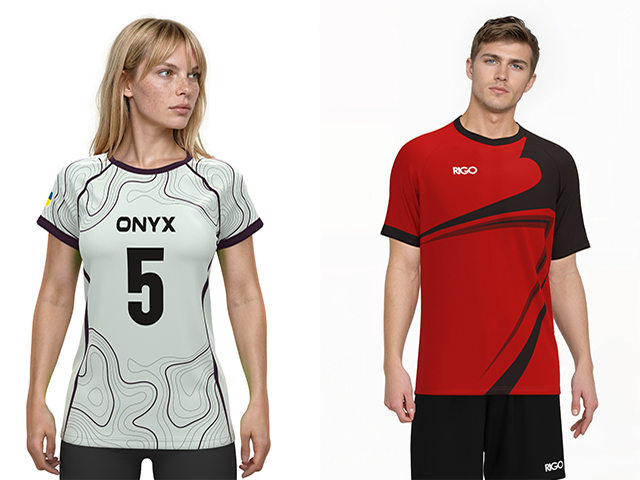
  • Place logos and text directly in 3D

    Add logos, names and numbers, then select them on the product to move, resize or rotate them. Customers can position their artwork while seeing how it sits on the shape of the garment.

    Duplicate a logo or text element, adjust its styling, or remove it as the design evolves. The available editing areas and tools follow the options you prepare for each product.
    Logos and text positioned on a 3D product
  • See your changes as you design

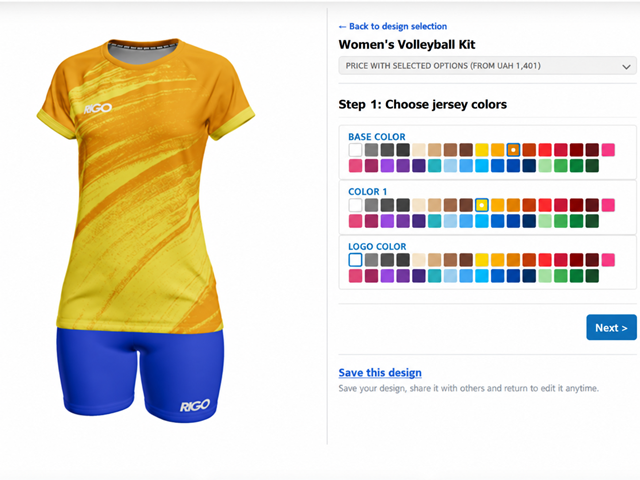
    Let customers explore colours, design areas, patterns and gradients with an interactive 3D preview. They can rotate the product and see their choices together as the design takes shape.

    You decide which choices are available, so the experience reflects your products and the personalisation you offer.

    Colours and design options in the 3D preview
    Colours and design options in the 3D preview
  • Product variants and complete sets

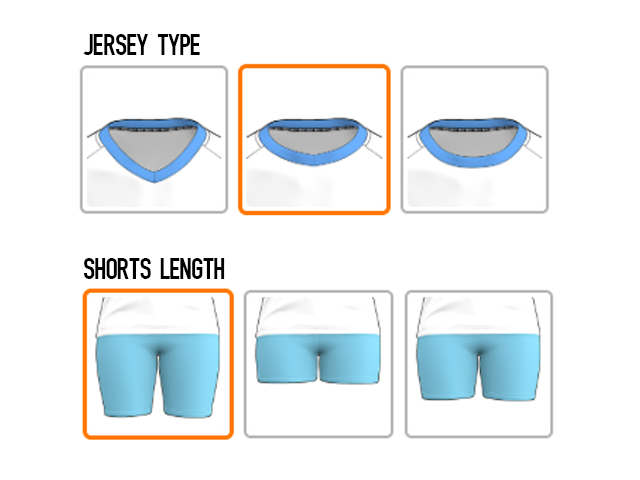
    Offer prepared variants within one product, or show several components together in a configurable set. A shirt and shorts, for example, can be presented as a complete kit.

    Product options can reveal additional choices, show or hide artwork and adjust the price. Each variant or component uses the models and resources prepared for that product.

    Product variants and a multi-piece team kit
    Product variants and a multi-piece team kit
  • Try-On that keeps your design

    Show the customer's design in prepared scenes combining photographic backgrounds with 3D garments. Customers can switch views and download a mockup of their design.

    Our Smart Render approach uses the configured design rather than asking generative AI to recreate it. This keeps the artwork, colours and placement tied to what the customer created, while presenting the product in a realistic setting.

    The same design in the configurator and a Try-On scene
    The same design in the configurator and a Try-On scene
  • A catalogue customers can explore

    Bring products, categories and available designs together in a catalogue on your website. Customers can browse your range, choose a starting design and open it in the 3D configurator.

    Present different designs for a product or create curated catalogue entries from your existing products and designs.

    Products, categories and designs in the live catalogue
  • Team orders, in one roster

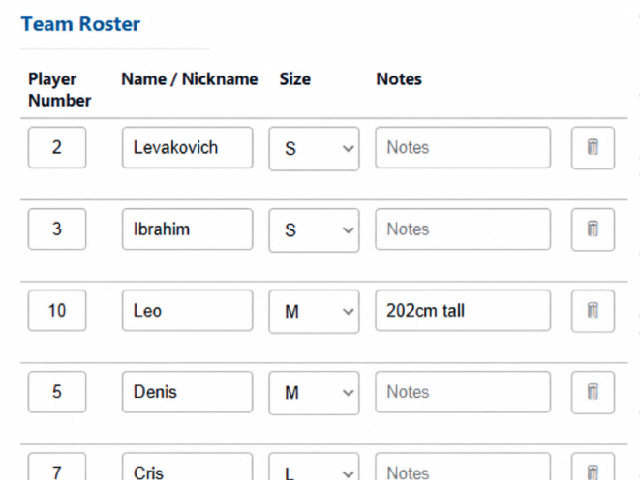
    Collect player names, numbers and sizes in a team roster instead of handling separate messages for every member. Size and quantity selections become a clear team order.

    Prepare the roster rules and contact fields your business needs, so the order arrives with the details required to discuss and process it.

    A team roster with player names, numbers and sizes
    A team roster with player names, numbers and sizes
  • Sizes, quantities and pricing rules

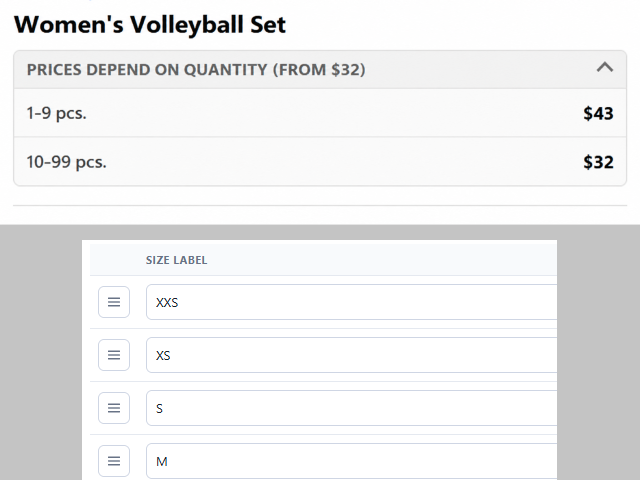
    Let customers choose from the sizes you offer and see pricing based on their quantities and selected options. Price tiers, surcharges and discounts can reflect the rules you configure for each product.

    Reusable size charts define the available size choices. When a price cannot be confirmed, the request can be passed to your team for a quote.

    Size choices, quantity tiers and an order total
    Size choices, quantity tiers and an order total
  • Connect customisation to your store

    With the optional WordPress and WooCommerce integration configured, customers can customise a product and pass its design, quantity, confirmed price and preview to the store's cart. Your store then handles checkout.

    The catalogue also works with its own enquiry forms. Connections to other shopping carts are reviewed separately for your platform and workflow.

    A customised product passed to a WooCommerce cart
    A customised product passed to a WooCommerce cart
  • Save a design and come back to it

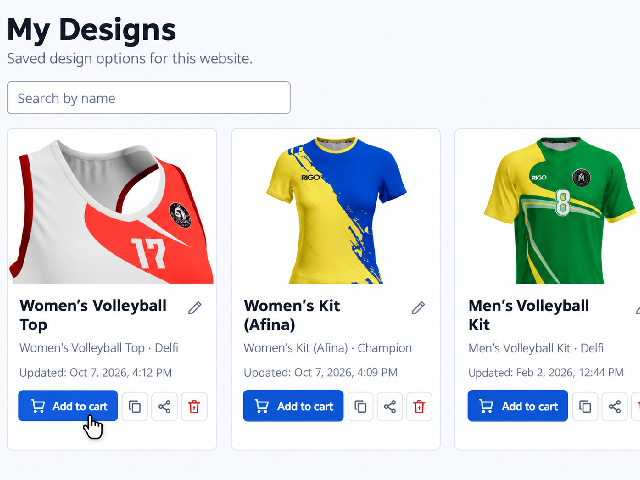
    Signed-in customers can save a configuration and continue editing later. Colours, artwork and other configured choices stay with the design, so they can pick up where they left off.

    Your team can also prepare a configuration and assign an independent copy to a customer as a starting point.

    A customer's saved designs
    A customer's saved designs
  • Share a design in interactive 3D

    Share a published design with a link, so a customer or teammate can explore it in interactive 3D. Recipients can submit an order or create their own copy to customise.

    Editing a copy preserves the original. Your team can update the shared version, set an expiry or revoke the link when needed.

    An interactive shared design and its independent copy
    An interactive shared design and its independent copy
  • A Dashboard built for product setup

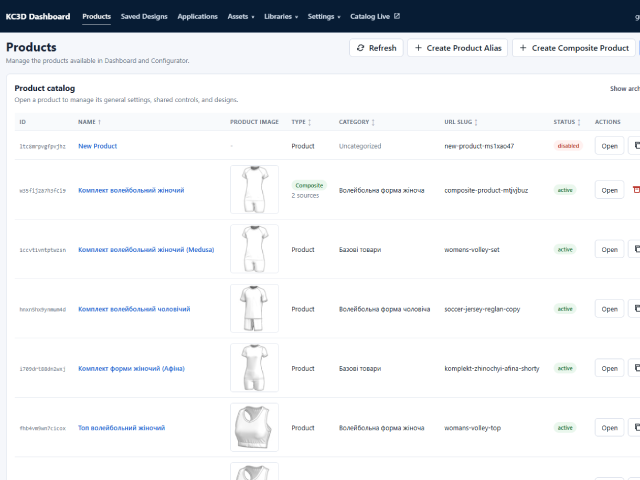
    Prepare your products in one backend editor: models, designs, colour palettes, fonts, customisation steps, options and ordering rules. Reuse shared resources and make adjustments for individual designs.

    Duplicate content, save drafts, generate previews and publish when you are ready. You control what customers can change, while published-state history helps you manage updates.

    Product and design settings in Dashboard
    Product and design settings in Dashboard
  • One catalogue, multiple websites

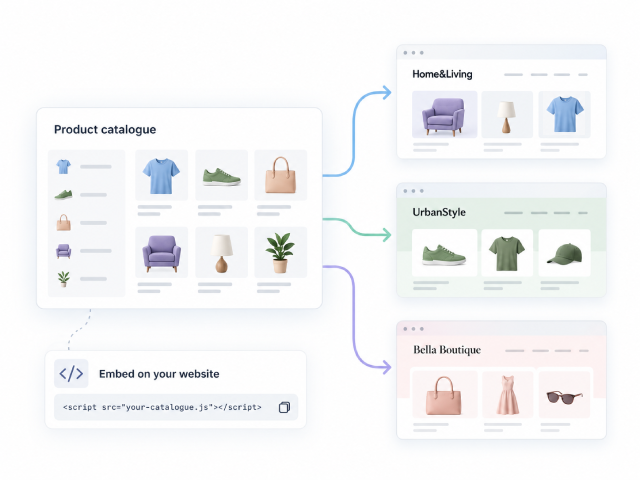
    Publish from one Dashboard to several websites, with a product and category selection for each site. Give each catalogue its own appearance, branding, contact details and notifications.

    Embed the catalogue on an allowed domain using an HTML and JavaScript snippet. The number of connected websites depends on your account and plan.

    A catalogue presented on several websites
    A catalogue presented on several websites
  • Order details your team can work with

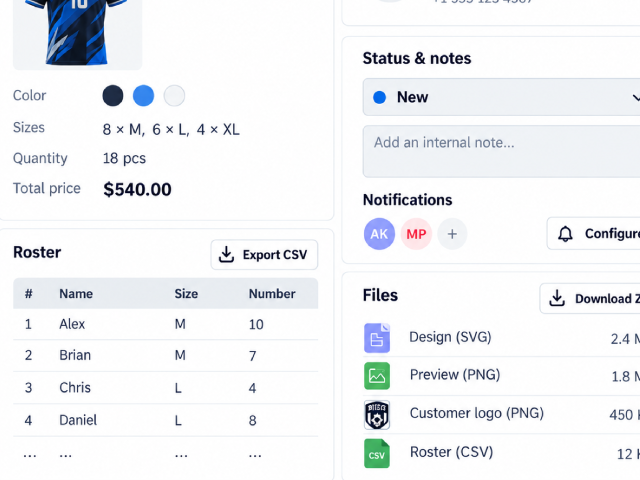
    Receive the submitted configuration with its preview, sizes, roster and pricing information. Available files can include the SVG and original customer logos.

    Search submissions, update statuses, add internal notes and export a ZIP with the available data and files, including CSVs. Configure notifications so the right people know when a request arrives.

    Submission details, order status and available exports
    Submission details, order status and available exports
  • See how customers use your catalogue

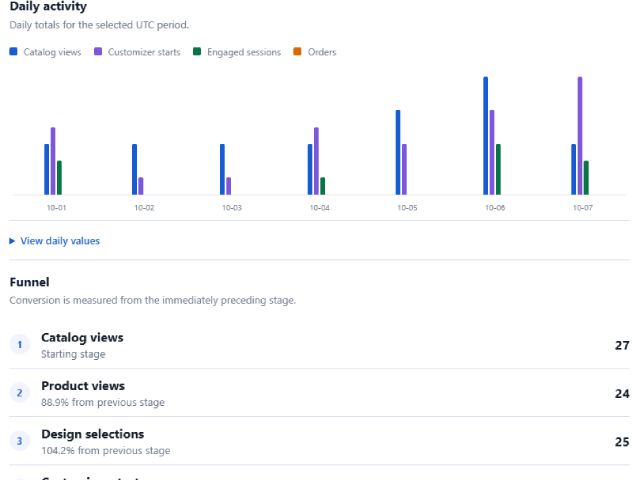
    Follow catalogue views, configurator starts, order-form openings and submitted orders. Explore the funnel, daily activity and the products and designs customers interact with.

    Text and logo usage reports help you understand how personalisation tools are used. Reports describe tracked activity rather than a guaranteed count of unique buyers.

    Catalogue activity, the order funnel and popular products
    Catalogue activity, the order funnel and popular products

What would you like your customers to create?

Tell us about your products and the choices you want to offer. We'll help you plan the right configurator and catalogue for your website.